ExSQL: Open-source AI-powered SQL on native Excel files
As a Data Engineer, I love SQL. And why not? The language is arguably one of the easiest to pick up; yet extremely expressive and powerful with the insights it can bring forth. However, in the race towards adopting the 'Modern Data Stack', far too often we indulge ourselves in cloud-native database engines such as SQL Server, or the likes of Databricks/Snowflake, et al. Yet, the reality of the business areas is that most data lives on the good old Excel - ever resilient, ever changing. So - when business analysts want to do quick transformations on their data - they end up relying either on multi-stage Excel configurations; or rely on heavy Business Intelligence tooling (PowerBI/Tableau/etc) for adhoc needs.
All of this can be eliminated if there was a way to run one-liner SQL queries on top of their messy Excel data. Most third-party Excel extensions need a premium license to execute SQL query on top of the data. Given that it is a frankly ubiquitous problem, I wanted to give it a shot myself. Presenting ExSQL (Excel + SQL) - an extremely lightweight tool that enables you to run SQL on your Excel files.
Design and Solution Flow
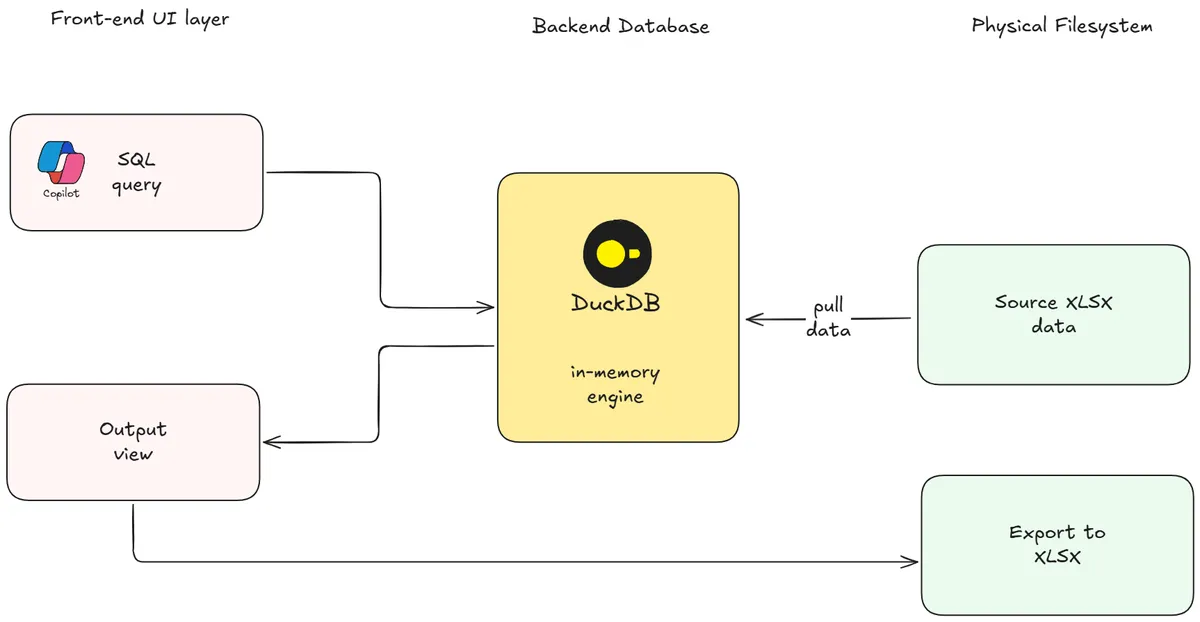
The fundamental problem here is to be able to execute a standard SQL query on an Excel sheet. To make this happen, we need primarily three components to be in place: an accessible front-end layer where the user can provide inputs; a backend database which does the heavy lifting; and finally, the physical filesystem itself.
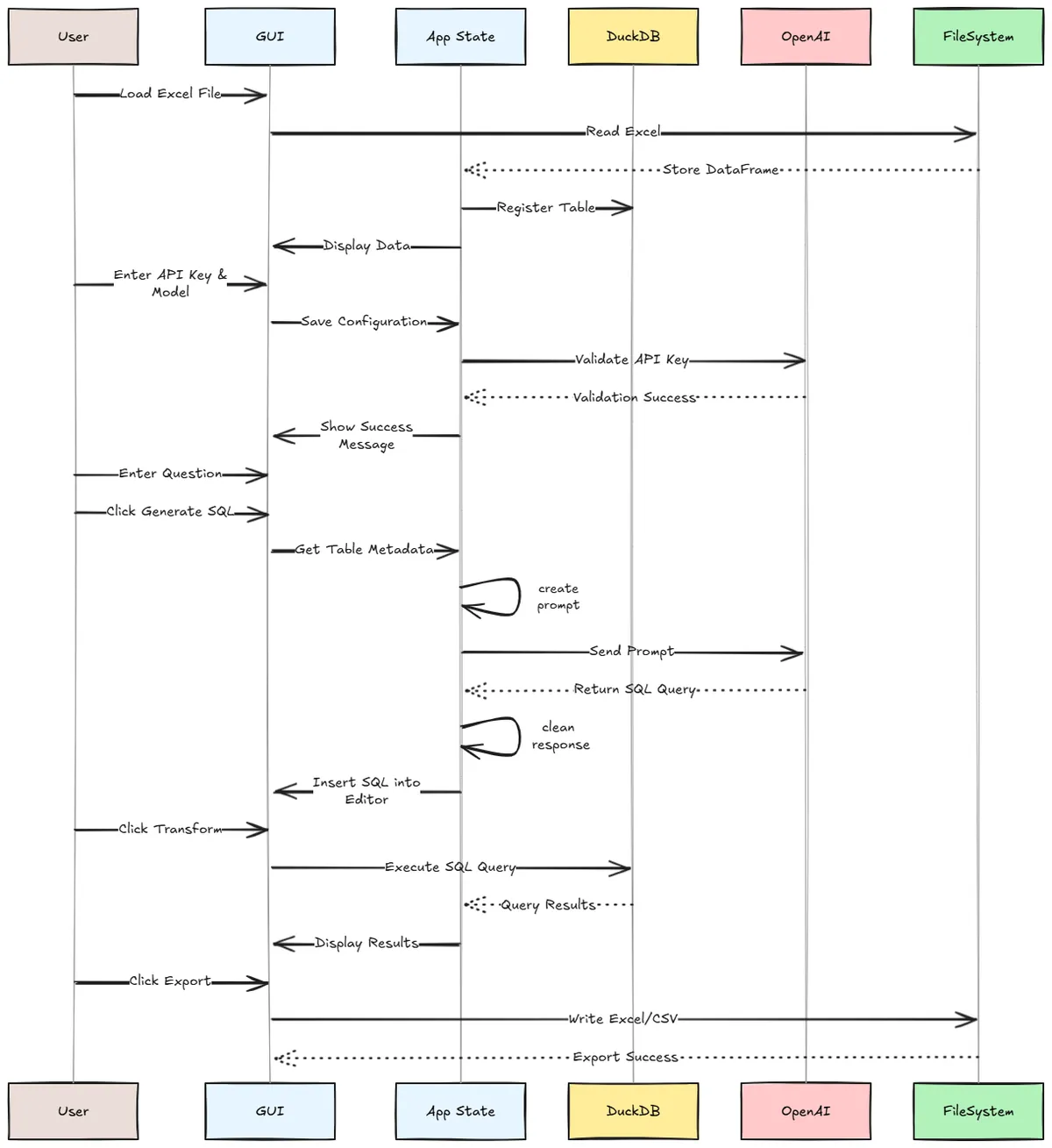
What happens when the end user is not comfortable enough with SQL? This is where Generative AI kicks in! We embed an in-tool component that records the OpenAI API key for the user, connects to the OpenAI server, and translates their query into an executable DuckDB SQL by leveraging the tabular metadata available. It does not access the actual data - it only looks at the column configuration from the underlying dataframe.
This tripartite arrangement then does back-and-forth communication to ensure that the target state, i.e. a successful query execution is met. The data component flow diagram is provided below for easy reference.
Build Phase
I have utilized the default Python GUI framework - Tkinter - for this application. It provides a convenient way to build cross-platform GUI tools. To start off, we need to define the base class for the application that will retain its state variables during runtime. The application is fairly light weight and only imports DuckDB and OpenAI modules as external packages.
import tkinter as tk
from tkinter import ttk, filedialog, messagebox
import pandas as pd
import duckdb
import os
from openai import OpenAI

class ExcelSQLApp:
    def __init__(self, root):
        self.root = root
        self.root.title("Excel SQL Transformer")
        self.root.geometry("1000x700")

        # State
        self.df = None
        self.original_df = None
        self.table_name = "data"
        self.con = duckdb.connect(database=':memory:')

        self.openai_api_key = None
        self.openai_model = None
        self.openai_client = None
I wanted the application to have a split pane. On the left side, the data load/transformed data is displayed. On the right side, the SQL query/natural language query is to be provided. This keeps it minimal and clutter-free. There are three buttons - Transform, Reset and Export. When 'Transform' is clicked, it executes the provided SQL against the underlying dataset. 'Reset' removes transformations made and brings back the original dataset loaded for further querying. 'Export', as the name suggests, exports the transformed dataset as a physical XLSX file.
# Under-the-hood look at the Transform button: Execute SQL on data
def transform_data(self):
        if self.original_df is None:
            messagebox.showwarning("Warning", "Please load an Excel file first.")
            return

        query = self.txt_sql.get("1.0", tk.END).strip()
        if not query:
            return

        try:
            self.con.register(self.table_name, self.original_df)
            # con is already defined earlier in class initialization
            result_df = self.con.execute(query).df()
            self.df = result_df # Update current view df
            self.display_dataframe(self.df)

        except Exception as e:
            messagebox.showerror("SQL Error", f"Query failed:\n{str(e)}")
There is also an OpenAI module that translates Natural Language Queries to SQL code. This feature is client-facing, meaning that the user has to provide an API key for the feature to work. This provides complete privacy to the end user, while also maintaining cost control. To enable this, we save the API key into our state variables, and then build a prompt to extract the required SQL.
# Define the UI component for the Natural language input by the user
def setup_nl_query_panel(self):
        """Setup natural language query panel"""
        nl_frame = ttk.LabelFrame(self.right_frame, text="Generate SQL from Question", padding=10)
        nl_frame.pack(fill=tk.X, padx=5, pady=5)

        ttk.Label(nl_frame, text="Ask a question about your data:").pack(anchor=tk.W, pady=(0, 5))

        self.txt_question = tk.Text(nl_frame, height=3, width=40)
        self.txt_question.pack(fill=tk.X, pady=(0, 5))

        self.btn_generate = ttk.Button(nl_frame, text="Generate SQL", command=self.generate_sql_from_question)
        self.btn_generate.pack()

        self.lbl_generate_status = ttk.Label(nl_frame, text="", foreground="gray")
        self.lbl_generate_status.pack()

def create_openai_prompt(self, question, metadata):
        """Create prompt for OpenAI API"""
        columns_str = ", ".join(metadata)

        prompt = f"""You are a SQL expert. Convert the following natural language question into a DuckDB SQL query.

            Table name: {self.table_name}
            Columns: {columns_str}

            Question: {question}

            IMPORTANT:
            - Return ONLY the SQL query, no explanations or markdown formatting
            - Use DuckDB SQL syntax
            - The table name is '{self.table_name}'
            - Do not include any text before or after the SQL query

            SQL Query:
        """

        return prompt
That is pretty much all the essential ingredients - the rest being code nitty-gritties. We are ready to launch our own app!
Runtime Demo
Before we proceed - we need to start by loading some data into the application.
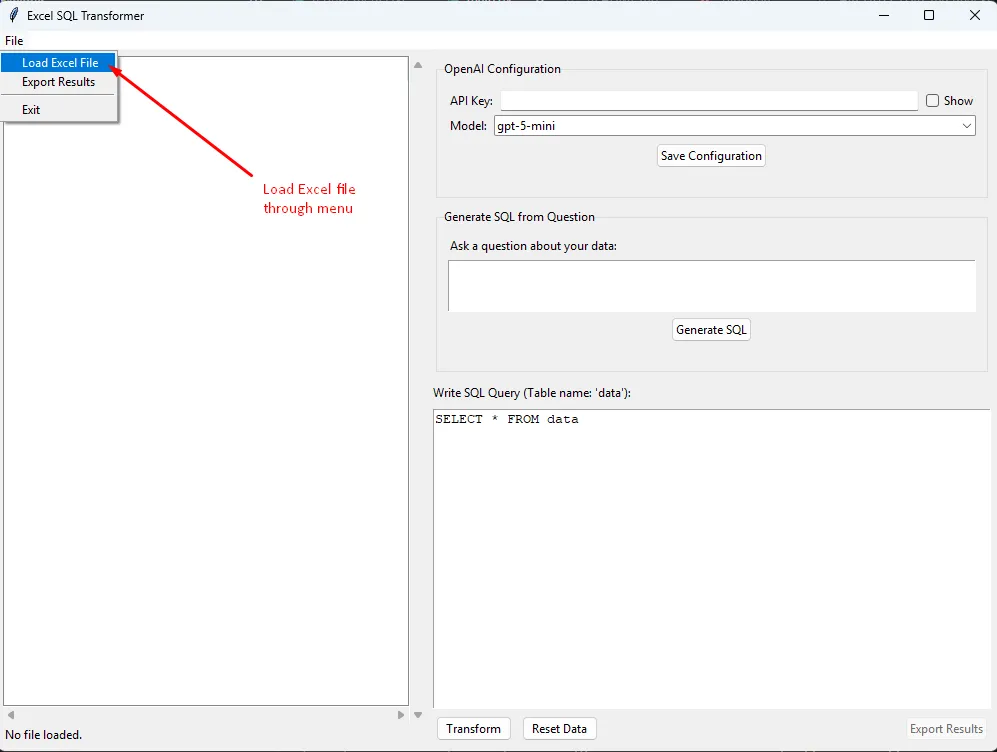
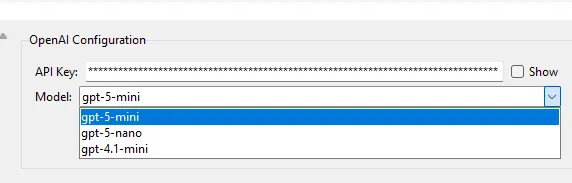
Once the data is loaded - let us assume we want to leverage GPT to answer our queries - we need to define the OpenAI configurations. Namely, an API key has to be provided and the model of choice to be used. It defaults to gpt-5-mini, which packs more than enough power for the use case. Yet, some other options are provided for choice - more the better! :)
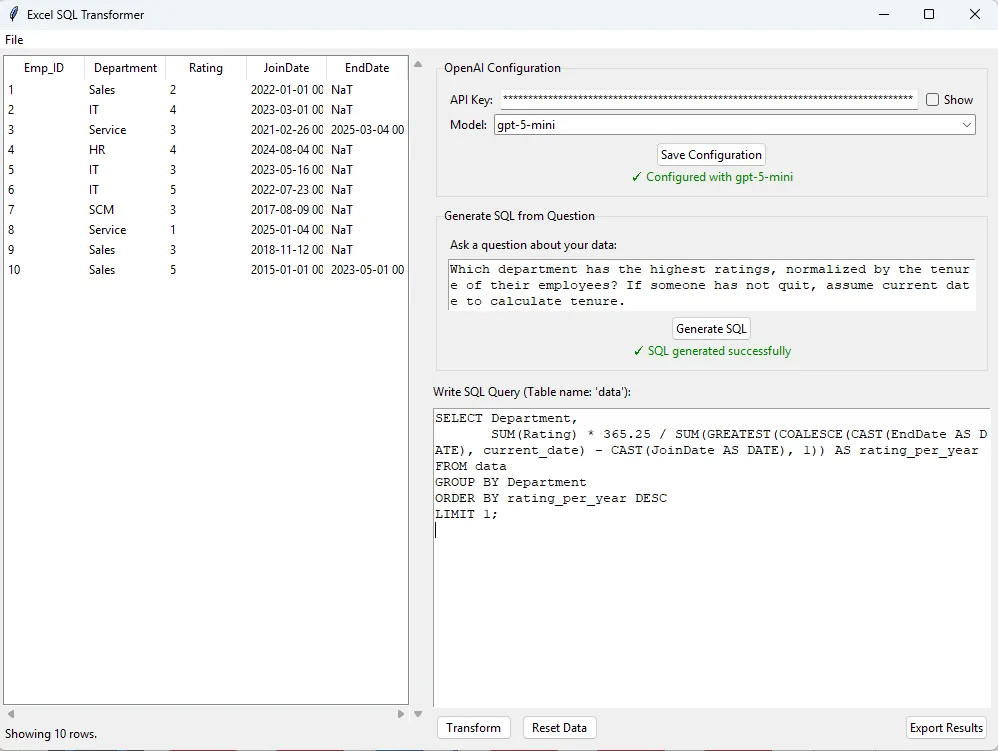
Houston, we are ready for lift-off! On a sample dataset (Mock Employee data), we throw a fairly convoluted question:
Which department has the highest ratings, normalized by the tenure of their employees? If someone has not quit, assume current date to calculate tenure.
On clicking 'Generate SQL', the model retrieves the columnar metadata, and comes back with a working SQL:
And the moment of truth - we get the results back on clicking the 'Transform' button.
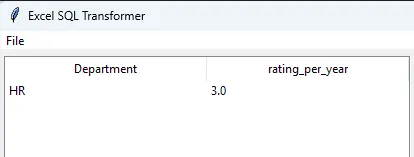
There you go - we now have a fully functional elementary SQL-on-Excel engine working!
A Way Ahead
The application has some limitations due to its lightweight nature. Today, the application cannot handle multi-file joins. Further, another big challenge with actual Excel files is incorrect header formatting/non-standardized column spacing. The program assumes that the Excel input is in a regular table format for it to work. Of course, these can be enhanced and added for support in incremental enhancements.
I strongly believe utilities like these should be free- and therefore I have open sourced the code, and steps to execute the same in my GitHub repository. Feel free to contribute to the project if you see a value-add.