Introducing ClAI: A Cross-Platform, Multi-Cloud CLI utility
As someone working on the modern data stack, I firmly believe that a solid understanding of underlying cloud computing concepts can elevate productivity. While there are many public cloud providers, it is perhaps realistic to assume that the hyperscalers - namely Azure, AWS and GCP - are far ahead of their competitors. Most of the Fortune 500 companies also rely on one of these platforms as their cloud partner. Further, depending on the cloud architecture, enterprises can adopt either a dedicated cloud partner, or a multi-cloud approach. In either case, cloud administration is not an easy job.
I specialise in Azure. I've been working on the platform for a good number of years and have realised that the portal is not always the best way to get things done. This is even more true, if your objective is to automate or be more efficient at routine daily tasks. That is where the CLI (Command Line Interface) kicks in: simple, yet power-packed! With only a few commands, one can spin up new instances, manage resources and configure settings. But as with everything nice - it comes with a tradeoff - that of remembering dozens of CLI instruction patterns.
Even though there is a general structure to the cloud providers' CLI commands, the problem gets exacerbated if a cloud admin has to work in a multi-cloud setup. The commands vary depending on the provider, and therefore it is quite a task to remember all of them effectively. Sure, one could Google a cheatsheet - but what if there's a better way? What if ... one could simply talk to one CLI, across cloud platforms, to get things done?
Solution Design Flow
Given that the tool has to navigate multiple cloud environments, the general design of the ClAI interface follows this pattern below. 'clai' is the wake-word, followed by the cloud platform initials, and ultimately the task in natural language that the user is trying to achieve.
clai <az/aws/gcp> "cloud instruction to be provided here"
Under the hood, the tool parses the above command, and tailors a GPT-call to generate a CLI reference for the concerned vendor platform. Fundamentals like ensuring that the pre-requisites exist (such as if the underlying original CLI shell is installed), switching the internal generator prompt based on the platform, and dealing with required parameters are built in. If you're not logged in initially, it will also automatically attempt to log you in (of course, with you in charge).
Furthermore, as a safety mechanism, each command is put forward for approval by the end user before being executed on the shell, to ensure that malicious attacks do not go through. There is also a debug mode to allow a deeper inspection of the GPT CLI commands being returned and make necessary fine-tuning to the prompts if necessary.
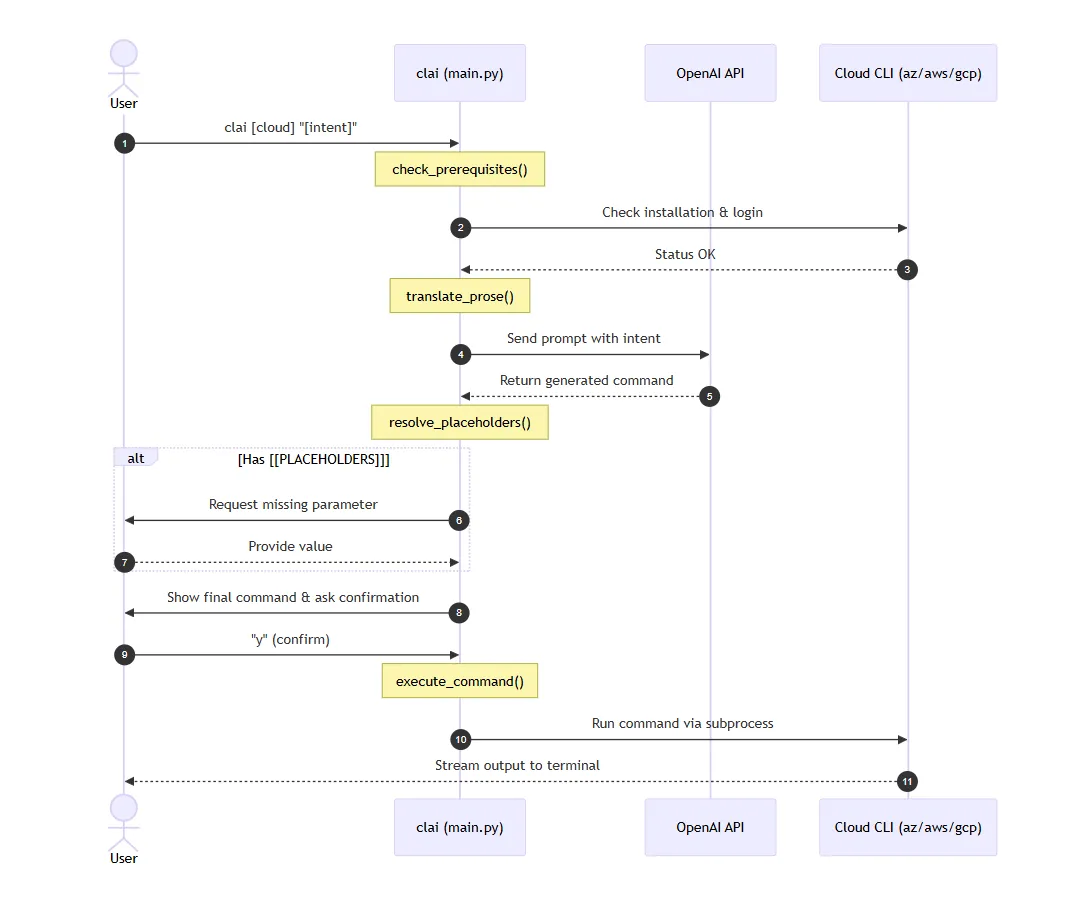
A sequence diagram is provided below for an easier understanding of the components. As evident, the control plane transfers between the shell (user), the OpenAI model, and the underlying cloud platform CLI tool.
A Note on the Nuances
For a CLI tool to be effective, it needs to operate on a cross-platform basis. This means that it should run not only on Linux environments, but also on Windows & MacOS. Internally, the program utilises the subprocess module, and a shell parameter is toggled depending on the OS. On Windows, the shell mode is enabled. This allows the tool to correctly find and execute commands that might be implemented as .cmd or .bat files (common for CLIs like Azure or AWS on Windows) and handles command string parsing through cmd.exe.
USE_SHELL = sys.platform == "win32"
def execute_command(command):
    """Execute the command using subprocess and stream output."""
    print(f"\nExecuting: {command}\n")
    try:
        process = subprocess.Popen(command, shell=USE_SHELL, stdout=subprocess.PIPE, stderr=subprocess.PIPE, text=True)
In the earlier sequence diagram, the method translate_prose() generates the system prompt for the GPT call to be made. The below snippet allows the system prompt to be made reusable. Parameterizing the demo reference commands for each platform also contributes to lesser hallucination, as the similarity indexes have to be closer to the example template provided.
def translate_prose(cloud, prompt, debug=False):
    client = OpenAI()

    provider_names = {
        "az": "Azure CLI",
        "aws": "AWS CLI",
        "gcp": "Google Cloud CLI (gcloud)"
    }

    cli_name = provider_names.get(cloud, cloud)

    system_prompt = (
        f"You are an expert in {cli_name}. Your task is to translate natural language user intent into exactly one executable command. "
        "The response must contain ONLY the raw command text, with no explanations, no markdown formatting, and no backticks. "
        "\n\nIf the user's intent is missing specific details required for the command (like a resource name, region, or SKU), "
        "insert a placeholder in the format [[PARAMETER_NAME: Brief Description]]. "
        f"Example for {cloud}: [[COMMAND_TEMPLATE]]"
        "\n\nIf the intent is completely unclear or impossible to translate, provide an error message starting with '# ERROR: '."
    )


    if cloud == "az":
        system_prompt = system_prompt.replace("[[COMMAND_TEMPLATE]]", "az group create --name [[NAME: Resource Group Name]] --location [[LOCATION: Azure Region]]")
    elif cloud == "aws":
        system_prompt = system_prompt.replace("[[COMMAND_TEMPLATE]]", "aws s3 mb s3://[[BUCKET_NAME: Unique Bucket Name]] --region [[REGION: AWS Region]]")
    elif cloud == "gcp":
        system_prompt = system_prompt.replace("[[COMMAND_TEMPLATE]]", "gcloud storage buckets create gs://[[BUCKET_NAME: Bucket Name]] --location=[[LOCATION: GCP Region]]")
The most important pre-requisite is to have the underlying CLI installed. So, if the operation is being performed for does not have its relevant CLI installed, the system will gracefully exit the terminal process. This is because the solution piggybacks on the official CLIs and does not bypass them.
Build and Demonstration
To install the utility, the Git repo (provided below) has to be cloned locally, and a pip command (pip install -e .) has to be executed after navigating to the root directory. This will install the dependencies and register the 'clai' command to the shell.
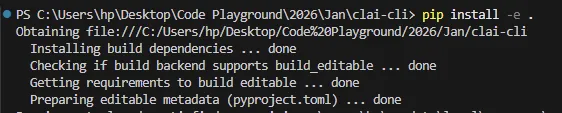
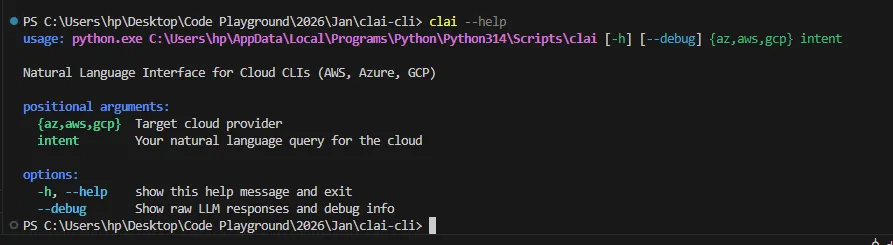
Once successful, verify a successful installation with the clai --help command:
Let's get going. How about asking ClAI to list all the resource groups that I have in Azure?
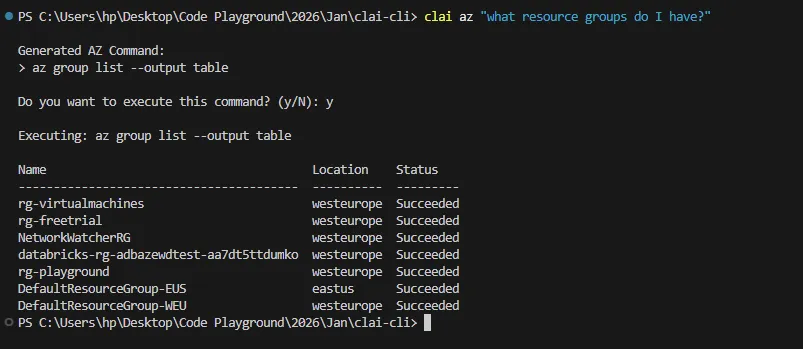
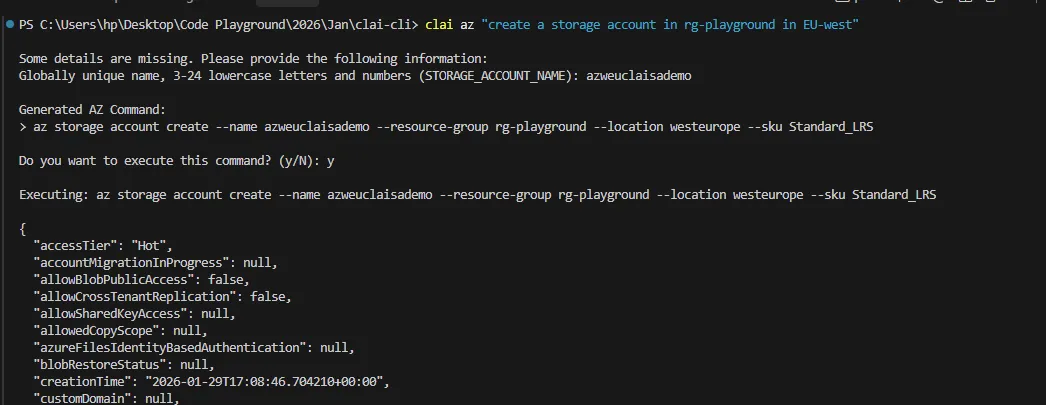
Bingo! Once it parses my intent, it comes back for a confirmation to execute, and then fetches my resource groups in my personal Azure tenant. Let's notch it up a little more and ask it to create, maybe a storage account in a specific resource group and a region. It recognizes a missing parameter for the Storage Account name, and proceeds to execute once provided.
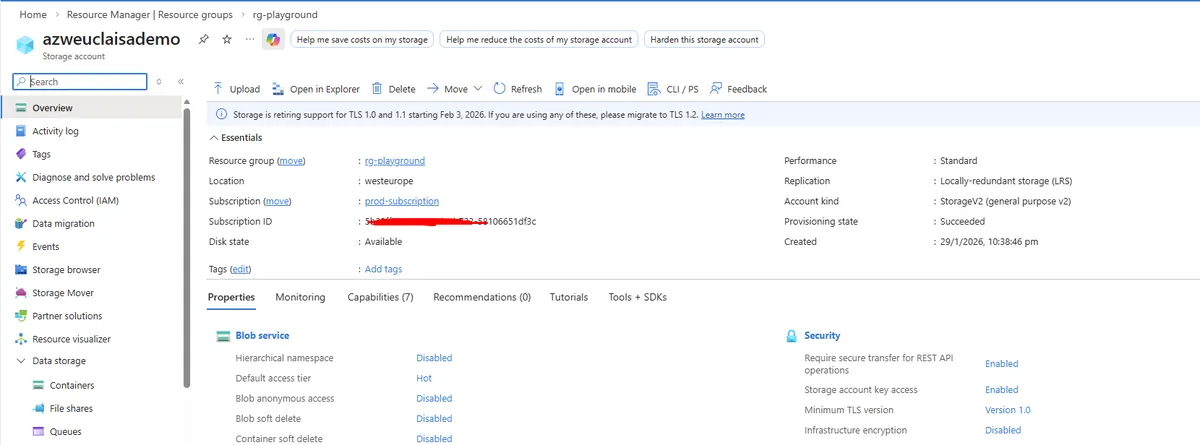
In the Azure portal, the resource is now deployed and live!
Concluding Notes
As always, I've open sourced the code on my GitHub Repository. Detailed installation guidance is also provided in the readme file. As of today, I could not find any other equivalent application that supports multi-cloud CLI orchestration using natural language.
One potential area of improvement will be the context memory for the CLI utility. Today, the nature of the application makes the GPT calls stateless; meaning that they do not persist any context from one command to the other. If a long-running stream conversation can be opened, then multiple commands can benefit out of chain calling. For example, if I were to ask the tool to list my resource groups, and then follow it up with "of the above, which are in East-US?", the invocation would fail due to lack of awareness.
The utility is open to further contributions - if you are willing to deep dive and make it better, please feel free to and raise a PR.